
Running it
Continuous scanning
The one toggle that keeps the report current and records what changed, and what turning it on actually does.
Continuous scanning is a single switch in Settings. Turning it on does two things at once, and they are deliberately not separable:
- Keeps the report current — the app rescans on its own, so what you open is what is true now rather than what was true the last time somebody remembered to press the button.
- Records permission history — each run’s changes are recorded, which is what makes history and change comparison possible.
These are one feature because the second is a by-product of the first. Recording history without scanning regularly produces a log with holes in it; scanning regularly without recording throws away the only evidence of what changed.
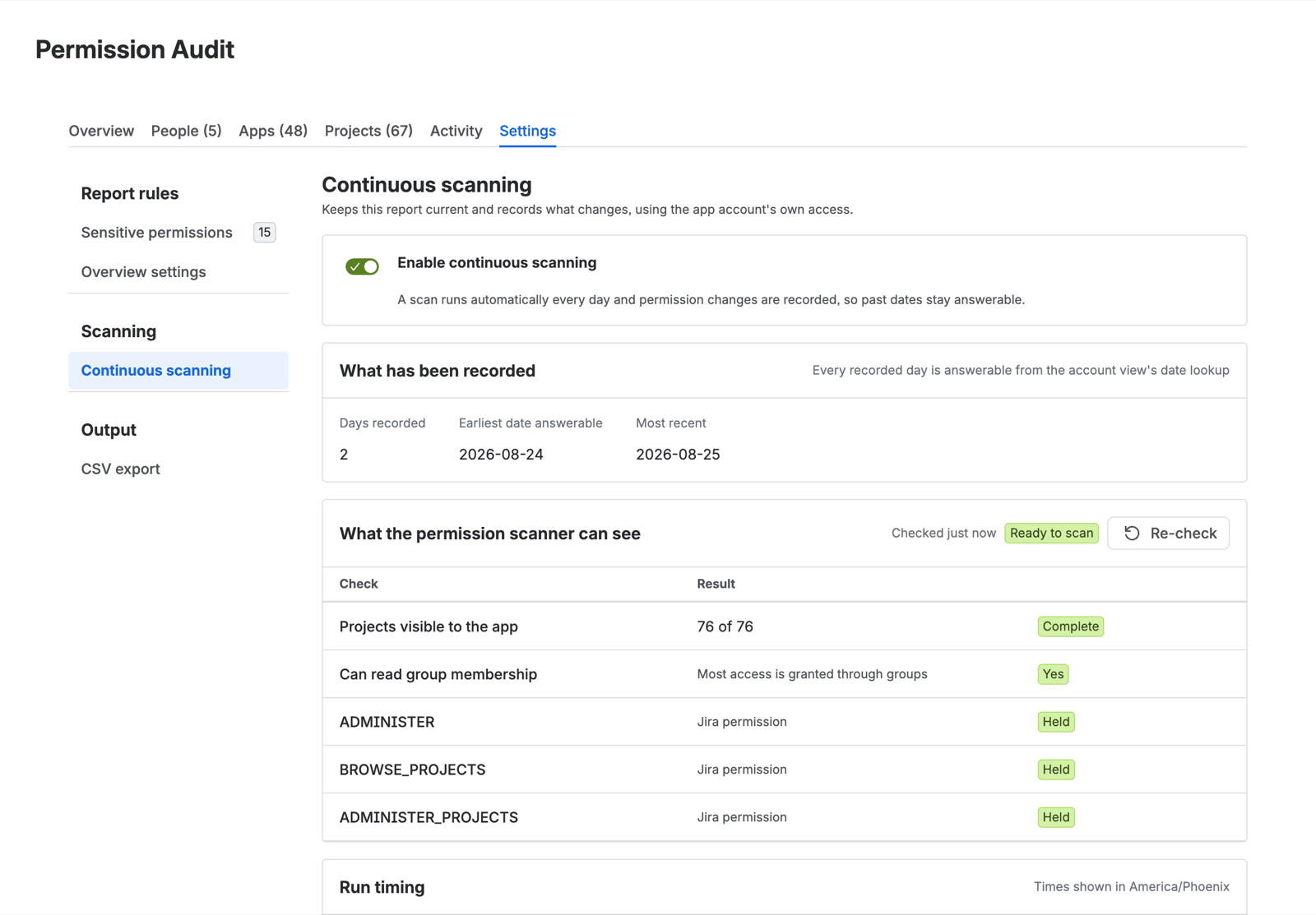
It is on by default
On an Advanced or trial installation, continuous scanning is enabled the first time the app observes the edition, without waiting for anyone to find the setting.
The reasoning: a permission report that silently goes stale is worse than no report, because it still looks authoritative. An admin who installed an access-review tool wants it reviewing access.
If you turn it off, that is a decision and the app records it as one. It is never re-enabled automatically afterwards, including after an edition change or an app update.
Scans are incremental
After the first complete pass, a scan reads what changed rather than re-reading the estate. A run on which nothing moved costs a small fraction of a full pass.
This is what makes regular scanning viable on a large site. Without it, keeping a several-hundred-project estate current would mean a full re-read of every scheme, role, and group on every run. See Scan cost and quota.
A run occasionally falls back to a full pass — after a change that invalidates the incremental baseline, for instance. When that happens, the Activity log’s Scan column says so and names the reason, rather than leaving you to infer it from a run that took much longer than usual.
Scans run server-side
A scheduled scan is not driven by anyone’s browser session. Nobody has to be logged in, and no tab has to stay open.
The same applies to manual scans: start one and close the tab. Progress is real progress on the server, not an animation in your browser.
Failures are reported, not hidden
If a scheduled run fails or does not complete, that is visible in Activity, and the date it covered has no history record — the report says the date was not scanned rather than presenting the previous day’s state as though it still held.
The last complete report remains readable throughout. A failed rescan never replaces a good report with a broken one.
Turning it off
Settings → the same switch. Existing history is kept; see Permission history.