
Running it
Settings
Sensitive permissions, review flags, export columns, and the continuous scanning control.
Settings is the only screen in the app where you decide something rather than read something. Everything on it changes what the report shows or how it runs; nothing on it changes your Jira.
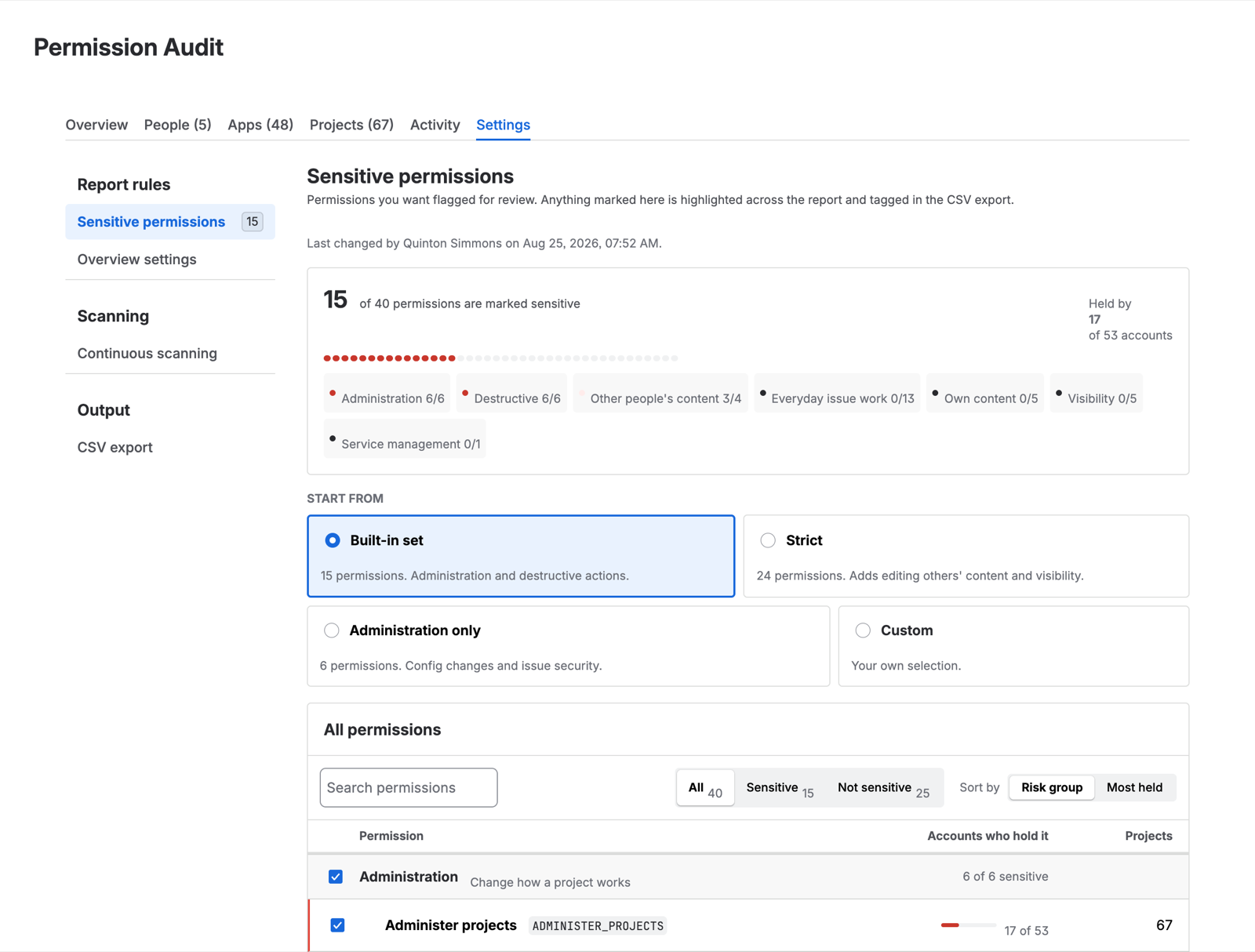
Sensitive permissions
Which Jira permissions the report treats as sensitive. This drives the Sensitive permission holders count on the Overview and the findings card beneath it.
Fifteen permissions are marked by default — the administrative and data-reaching ones, the permissions you would expect an access review to focus on. The set is editable, and it should be: what counts as sensitive depends on what your Jira holds.
Two directions worth considering:
- Add permissions that are sensitive in your context. If your projects carry regulated data, the ability to export or to bulk-change issues may matter more than it does elsewhere.
- Remove permissions that are ordinary for your site. Marking something sensitive that hundreds of people legitimately hold makes the finding meaningless, and a finding nobody acts on trains people to ignore the ones that matter.
Changing the set re-evaluates the current report. It does not require a rescan — the underlying grants are already resolved; what changes is which of them are flagged.
Overview settings
Which review flags appear on the Overview.
The deactivated accounts with access flag is on by default and can be turned off. If your offboarding process deliberately leaves accounts deactivated-but-granted for a retention period, the flag is noise rather than a finding, and you can suppress it.
Export columns
The default column set for CSV export. The export dialog lets you change them per export; this sets what it opens with.
Continuous scanning
The switch described in Continuous scanning.
On Advanced it is on by default. On Standard it is visible and disabled, with the capability table below it showing what each edition includes.
Beneath the switch, a panel lists the dates that have a completed scan behind them — which is what makes it possible to tell “held nothing then” apart from “nobody looked then” when reading history.
What Settings does not do
It does not configure the scan’s scope. The report covers the whole site, every project, always.
An earlier design let you choose which projects to include, and it was removed on purpose: a report that silently covers a subset of the estate looks exactly like a report that covers all of it, and the difference is invisible six months later when someone reads the export. Coverage is a property the app measures and tells you about, not a setting you configure.