
Running it
Exporting to CSV
Getting the report out for an evidence pack, choosing columns, and what the export contains.
Access reviews end in a document somebody signs. The CSV export is how the report becomes that document.
Exporting
Export CSV in the page header opens the export dialog. Choose the columns you want and confirm.
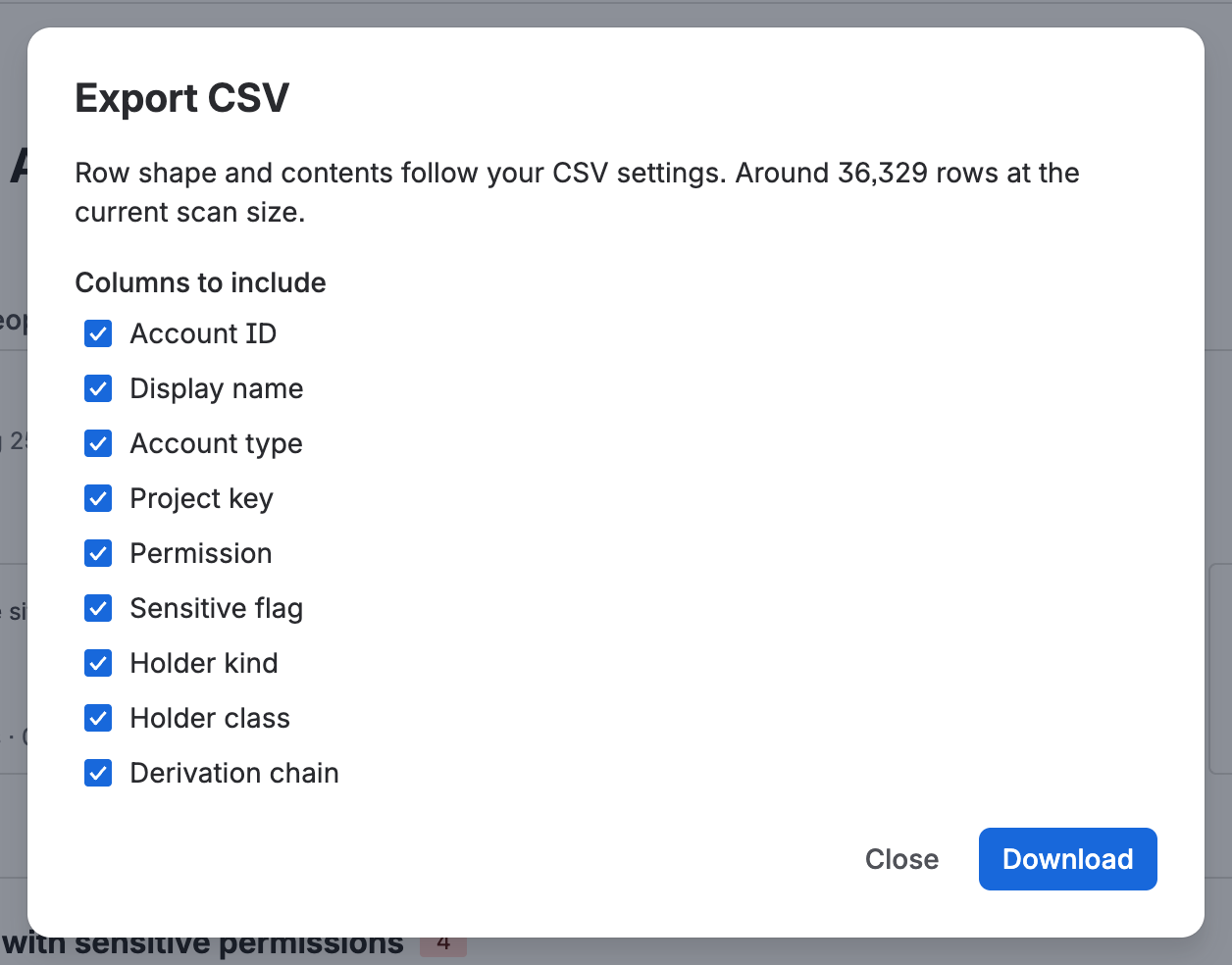
The file downloads from your browser. Like everything else in the app, it is produced inside Atlassian’s infrastructure — the data is not routed through a QuinTek service to generate it.
What it contains
One row per resolved grant: the account, the project, the permission, and the derivation that produced it.
The derivation column is the point. It is what makes the export answer an auditor’s follow-up question — “how did they get that?” — without going back to the app, and it is what a spreadsheet assembled by hand almost never has.
Accounts with no access are included, so the export is also the evidence that a given account holds nothing.
Choosing columns
The dialog toggles columns individually. Column order in the file is fixed regardless of the order you toggle them, so exports taken at different times stay diffable against each other — which matters if you keep them as a period-over-period record.
Scale
The export streams in pages rather than assembling the whole file in memory, so it works on estates where the full grant set runs to hundreds of thousands of rows.
A large export takes a while. It is doing real work — on a site with several hundred projects the resolved grant set is genuinely large, which is also why the in-app views page rather than rendering everything at once.
What is in the export by edition
| Edition | Export contains |
|---|---|
| Standard | The current people report |
| Advanced | People and installed apps |
Historical exports — the report as of a past date — are not available in v1. History is readable in the app; the export always reflects the current scan.